
A Guide to Creating Photo Albums on iPhone
Organizing the photos on your iPhone is one of those things that feels like a chore until you actually do it. Suddenly, you can find that one perfect shot from vacation without scrolling through a thousand screenshots. With just a few taps, you can group photos by events, people, or dates, turning a chaotic camera roll into a curated collection of memories.
But what about gathering photos from a big event, like a wedding? That's a whole different challenge. Thankfully, modern tools now let you seamlessly consolidate photos from all your guests using a simple QR code. Everyone's pictures land in one central gallery with instant uploads and no app downloads—no fuss, just ease of use. This approach neatly bridges the gap between managing your personal library and crowd-sourcing memories from others.
Why Bother Organizing Your iPhone Photos?
Let's be real: we take a lot of pictures. With a high-quality camera always in our pocket, capturing every little moment has become second nature.
The numbers are pretty staggering. It's projected that by 2025, people will snap over 2 trillion photos a year. This explains why the average person has close to 2,800 photos just sitting on their phone, making it a nightmare to find anything specific. Organizing your photos isn't just about being tidy; it's about making your digital memories accessible and enjoyable. If you're curious about the data behind our photo habits, you can dive into more mobile photography statistics and what they mean for us.
This visual breaks down the two main ways we'll tackle photo organization: creating personal albums for your own stuff, and building collaborative event galleries with photos from your guests.
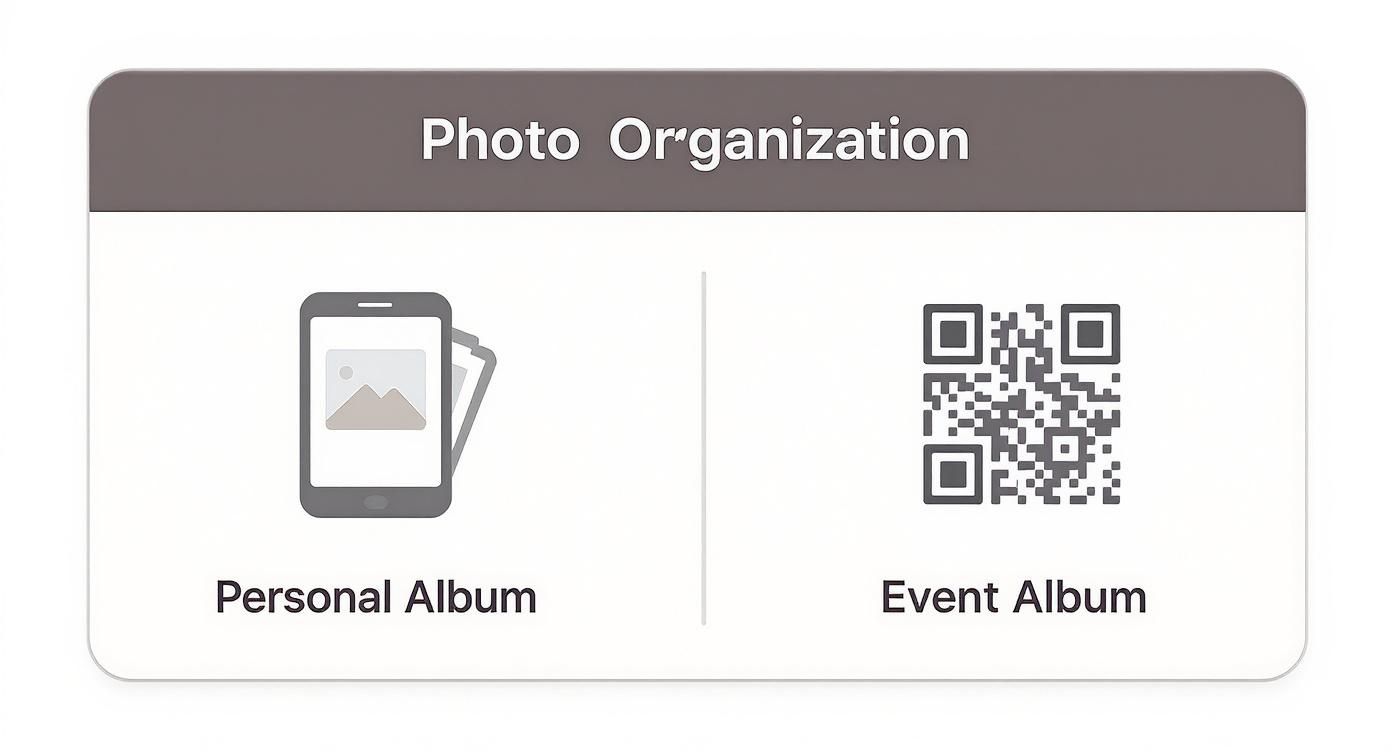
The main takeaway? You need different tools for different jobs. One method is for your personal archive, and another is for collecting photos from everyone at a live event.
Beyond Personal Albums: A New Way to Collect Memories
While the iPhone's native Photos app is fantastic for your own pictures, getting photos from dozens (or hundreds!) of guests at a wedding is a totally different ballgame. This is where QR code solutions like WedPicsQR really shine by offering a dead-simple alternative. The goal is to make photo collection completely effortless for everyone involved.
This method works so well because it's incredibly fast and accessible. Guests don't have to download an app, create an account, or jump through any hoops. They just scan a QR code with their phone's camera and can immediately start uploading their photos to a shared gallery.
Pro Tip: Display your event’s QR code at the venue entrance or on invitations for instant photo uploads. This simple move encourages guests to start sharing their candid shots from the moment they arrive.
This seamless process has a primary focus on weddings but is versatile enough for all kinds of gatherings:
- Birthdays and Anniversaries: Easily pull together photos from all your friends and family.
- Corporate Gatherings: Consolidate pictures from conferences, team events, or holiday parties without chasing down colleagues.
- Family Reunions: Create a lasting digital archive with contributions from every generation in attendance.
To make it even clearer, let's compare the two approaches side-by-side.
Photo Collection Methods at a Glance
This table gives you a quick snapshot of how native iPhone albums stack up against a dedicated event-focused tool for gathering photos.
| Feature | Native iPhone Albums | WedPicsQR Event Albums |
|---|---|---|
| Best For | Personal photo organization | Collecting guest photos at events |
| Setup | Manual creation, one photo at a time | 5-minute setup for the entire event |
| Guest Experience | N/A (personal use only) | Scan a QR code, upload instantly |
| App Required? | Yes, the native Photos app | No app download needed for guests |
| Collaboration | Limited (Shared Albums require invites) | Seamless, open to all guests |
| Cost | Free (built into iOS) | Free and paid plans available |
Ultimately, both have their place. Use your iPhone's built-in tools for your day-to-day photo management, but when it's time to collect memories from a crowd, a QR-code solution is the way to go for maximum participation and minimal friction.
Building Your First iPhone Photo Album
Let's be honest, scrolling through a chaotic camera roll to find one specific photo is a pain. The good news is that turning that digital junk drawer into a clean, organized library of memories is easier than you think. Creating a photo album right on your iPhone is the first, most important step.
Fire up the Photos app and tap the Albums tab at the very bottom. You'll see a little plus sign (+) in the top-left corner—give that a tap and select New Album. Now, give it a name that makes sense. Think "Summer Vacation 2023" or "Weekend Hiking Trips," not just "Album 1." A good name means you'll find it instantly later.
Adding and Arranging Your Photos
Once your album has a name, your entire photo library pops up. This is where the fun begins. Just start tapping on all the pictures and videos you want to include. A little blue checkmark will appear on each one, helping you keep track of what you've already selected.
When you’ve picked all your favorites, tap Done. Boom. Your new album is ready to go.
Forgot a few good shots? No sweat. You can always add more. Just open the album, tap the three dots in the corner, and choose Add Photos. This isn't a one-and-done thing; you can keep curating your albums over time as you take more pictures.
Now, what if you want your photos to tell a story in a specific order? By default, they're just arranged by date. To fix that:
- Open the album you want to reorder.
- Press and hold on a photo until it kind of "lifts" off the screen.
- Without letting go, just drag it to its new spot.
This simple drag-and-drop lets you build a real narrative. Put your best shot first, group similar photos together—you're the director here.
Fine-Tuning Your Album for a Polished Look
A couple of small tweaks can make a huge difference in how your albums look and feel. My favorite is setting a Key Photo. This is the thumbnail image that represents the entire album, like a book cover.
To set one, open your album, press and hold your absolute favorite photo, and tap Make Key Photo from the little menu that appears. A great Key Photo makes your collection stand out and gives you a quick visual cue of what’s inside.
A well-chosen Key Photo acts like the cover of a book, giving you a quick visual cue of the album's contents and making your photo library feel more like a personalized gallery.
And if you decide the name isn't quite right, changing it is just as easy. Head into the album, tap the three dots, and select Rename Album. Keeping your naming consistent is a pro move. A "Year - Event" format like "2024 - Family Reunion" makes sorting and searching a breeze down the road.
To take your albums to the next level, get some inspiration from unique photo ideas for unforgettable albums. Thinking creatively about the shots you include can elevate a simple collection into a compelling story. These little habits will turn your Photos app from a mess into a beautifully structured archive of your life.
Using Shared Albums for Collaborative Memories
Creating your own albums is fantastic for organizing your memories, but the real magic happens when you bring everyone's photos together after a trip or event. That's exactly what iCloud Shared Albums were made for. It’s a built-in iPhone feature that transforms your device into a hub for collaborative memory-making, perfect for privately sharing photos with a select group of people, like family and close friends.
Think of it as your own private mini-social network just for photos. You could spin up a Shared Album for a family reunion, a weekend getaway with friends, or a holiday party, and everyone you invite can add their own pictures and videos. It turns a simple gallery into a rich, multi-angle story told by everyone who was there.
Setting Up Your First Shared Album
Getting started is surprisingly easy. Just pop open the Photos app, head to the Albums tab, tap the little plus (+) icon, and choose New Shared Album. Give it a name—something clear like "Smith Family Reunion 2024"—and then you can invite people straight from your contacts.
Once you send the invites, they’ll get a notification to join. You stay in the driver's seat, managing who can view, comment, like, or even add their own photos to the album. It's the perfect solution for creating an intimate, shared space for a specific group. For a deeper dive into different ways to collaborate, check out our guide on the benefits of shared photo albums.
Key Features and Limitations
iCloud Shared Albums are incredibly useful, but it’s good to know their strengths and weaknesses. This helps you figure out if it's the right tool for what you need.
What Shared Albums Do Well:
- Private Sharing: Only people you invite can see the album, keeping your memories within your chosen circle.
- Interactive Experience: Everyone can leave comments and 'like' photos, which makes reliving the moments together a lot more fun and engaging.
- Cross-Device Sync: The album automatically syncs across all your Apple devices. Friends on a PC can even view it using iCloud for Windows.
However, there are a couple of limitations to keep in mind. Photos uploaded to a Shared Album are downsized to a resolution of 2048 pixels on the long edge. That’s perfectly fine for looking at on a screen, but it’s not ideal if you plan on making large prints. There are also caps on the total number of photos and videos you can store in all your shared albums combined.
For smaller, private events like a family holiday or a close-knit birthday party, iCloud Shared Albums are a fantastic, free tool for pooling memories. For larger gatherings where quality and ease of access for all guests are priorities, other solutions may be more suitable.
Collecting Event Photos Seamlessly with a QR Code
While sorting your own photos into iPhone albums is straightforward, the game completely changes when you're trying to gather pictures from everyone at a big event. Let's be real—chasing down guests for their photos after a wedding or a big family reunion is a nightmare. You send texts, you shoot off emails, and you end up with a scattered, incomplete collection. It just doesn't work.
This is where a modern approach completely flips the script. Imagine a system so simple that every single guest can add their photos to a central gallery in real-time, without any friction at all.
The Power of Instant, App-Free Uploads
The secret to getting guests to actually share their photos is making it dead simple. If the process is instant and requires zero effort, they'll do it. This is exactly why QR code photo-sharing platforms are so effective.
By setting up a unique QR code for your event, you remove all the typical roadblocks. There's no app to download, no account to create, and no confusing steps to follow. Guests just point their phone's camera at the code, a webpage pops up, and they can upload their photos straight into your gallery. This seamless flow is key to capturing all those candid, in-the-moment shots you’d otherwise miss.
Versatility for Any Occasion
This method is an absolute game-changer for weddings, but it’s just as brilliant for pretty much any gathering. The scan-and-upload system is perfect for a whole range of events.
- Birthday Parties: Effortlessly collect every memory from that milestone celebration.
- Corporate Gatherings: Consolidate photos from team-building events, conferences, or holiday parties into one professional gallery.
- Family Reunions: Finally create a complete digital archive with photos from every branch of the family tree.
The real magic here is centralization. Instead of photos being scattered across dozens of phones and social media feeds, every single image lands in one private, easy-to-access album.
Practical Tips for Maximum Engagement
To get the most photos, you have to make the QR code impossible to miss. Display your event’s QR code at the venue entrance or on invitations for instant photo uploads. Seriously, put it everywhere. Print small cards with the code for every table, project it onto a screen during the event, or even mention it in your welcome speech. The easier you make it to find, the more pictures you'll get.
Think about it: around 5.3 billion photos are taken worldwide each day, a number that shows just how much we love capturing moments. Platforms like Instagram see about 1.3 billion images shared daily. You can read more about this photo explosion and the growing need for effective organization. Tapping into this habit with a simple QR code is the smartest way to build a complete gallery. Our guide offers more strategies for using a QR code for event photo collection.
Pro Tips for Managing Your Entire Photo Library
Alright, you've got the basics of creating albums down. Now it's time to really take control of your photo library like a pro. Your iPhone's Photos app is surprisingly powerful, packed with features that can turn a chaotic camera roll into a beautifully organized collection. Forget endless scrolling—let's make your library work for you.

The first thing you need to master is the search bar at the top of the app. This is so much more than a date-finder. You can type in almost anything—"beach," "dog," or "concert"—and your iPhone's image recognition will pull up matching photos, even if you never tagged a single one. It’s incredibly smart and a massive time-saver.
Another hidden gem is the 'For You' tab. I find myself checking this all the time. It intelligently groups your pictures into memories and collections, often digging up fantastic photos I'd completely forgotten about. Think of it as your personal photo curator, surprising you with moments from past trips or family gatherings.
Unlocking Advanced Organization
To make your photos even easier to find later, start adding captions. Just swipe up on any photo and tap "Add a Caption." This is a game-changer for remembering the little details—who was in the photo, the name of that restaurant, or the funny story behind the shot.
Here are a few more tricks I use all the time to keep my library tidy:
- Lean on the 'Favorites' Album: That little heart icon is your best friend. Tap it on your absolute best shots. This automatically sends them to a dedicated 'Favorites' album, which makes finding your top-tier photos for printing or sharing a one-tap affair.
- Hide What's Just for You: Have some photos you'd rather not have pop up when you're showing your phone to someone? Select them, hit the share button, and choose 'Hide.' They'll be moved to a 'Hidden' album, keeping your main library view clean and ready for public viewing.
Getting into these small habits can totally transform how you manage your pictures. Instead of dreading the endless scroll, you'll be able to pinpoint exactly what you need in seconds. It makes the whole process of creating albums feel efficient and, dare I say, fun.
The drive to keep our digital memories organized is huge. The global market for photobooks and photo albums was valued at USD 3.42 billion and is only getting bigger as more of us look for ways to turn our phone snaps into something tangible.
Going Beyond Static Images
Remember, your iPhone captures more than just still pictures. Live Photos, for instance, hold a tiny video clip. Exploring how to turn Live Photos into videos on your iPhone is a great way to add a dynamic, moving element to your albums and social media shares.
For a deeper dive into long-term strategies for managing a growing collection of digital memories, check out our complete guide on https://www.wedpicsqr.com/blog/how-to-organize-digital-photos. It’s packed with tips to keep you organized for years to come.
Got Questions About iPhone Photo Albums? We've Got Answers
Once you start organizing your digital photos, a few common questions always seem to pop up. Things like storage space, sharing logistics, and quality can be confusing. Let's clear up some of the most frequent queries to make managing your iPhone photo albums a whole lot smoother.
First up, the big one: storage. People often worry that creating albums will eat up their phone's memory. Good news—it won't. When you create an album, you’re not duplicating your photos. You're just creating pointers, or shortcuts, to the original images in your library.
This means you can delete a photo from an album, and it will only be removed from that specific collection. But be careful: if you delete a photo from your main library, it’s gone for good and will disappear from all the albums it was in.
Another common headache is figuring out the best way to collect photos from guests at an event. iCloud Shared Albums can work for small groups, but they're a bit clunky. Everyone needs an invite, and they all have to have an Apple ID. Not ideal.
Solving the Event Photo Collection Problem
For bigger gatherings like weddings, company parties, or family reunions, you need something way more streamlined. This is where QR code-based systems really shine, offering an ease of use that’s tough to beat for both you and your guests.
The main advantage is the instant photo upload feature. Guests just scan a QR code with their phone's camera, which takes them straight to an upload page in their browser. There is absolutely no app requirement, which is huge. It removes the single biggest reason people don't participate.
The goal is seamless consolidation. By displaying your event’s QR code at the venue entrance or on invitations for instant photo uploads, you make it effortless for everyone to contribute. This simple action centralizes every captured memory into one organized gallery.
This approach was born from the wedding world, but it's incredibly versatile and works perfectly for other occasions:
- Birthday Parties: Capture all those candid moments without having to hound people to send you photos later.
- Corporate Gatherings: Easily pull together images from team-building days, conferences, and holiday parties.
- Family Reunions: Build a complete digital archive with photos from every generation in attendance.
The real magic is in its simplicity. Guests don't need to sign up, log in, or download a thing. They scan, upload their pictures, and get back to the party in seconds.
Album Limits and Photo Quality
So, what about the technical limits? A standard iPhone can hold up to 10,000 albums, and each of those albums can contain up to 5,000 photos and videos. That’s more than enough space for even the most snap-happy photographer.
And what about photo quality? The images you add to your personal albums on your iPhone always keep their original resolution. But, as we mentioned before, photos in iCloud Shared Albums get downsized.
If keeping full-resolution images from your guests is a top priority, a dedicated event photo-sharing platform is the way to go. It guarantees every single detail is saved without any compression.
Ready to effortlessly collect every photo from your next event? With WedPicsQR, you can create a beautiful, centralized gallery with a simple QR code. Guests can upload instantly with no app needed. Start creating your free event gallery today.