
Create Photo Album iPhone: How to create photo album iphone on iOS
Sure, creating a photo album on your iPhone is easy enough with the built-in Photos app. But when you’re trying to gather hundreds of pictures from a big event like a wedding, you need a smarter approach—one that blends your phone’s native tools with modern ways to collect photos from everyone in real-time.
Your Ultimate Guide to Creating iPhone Photo Albums
Your iPhone is more than just a camera; it’s the command center for organizing and sharing your life’s biggest moments. Think about it: smartphones are behind a staggering 94% of the 1.8 to 2 trillion photos snapped each year. With the average person hoarding around 2,795 photos, making albums isn't just nice, it's necessary. Dive deeper into these digital photography trends and see why iPhones continue to be the camera of choice for so many.
Whether you're just tidying up personal memories or trying to wrangle photos from a huge celebration, your phone has everything you need to get started. I'll walk you through the basics of creating an album in the Photos app and then show you some more advanced tricks for collaborating. Most importantly, we'll cover the single easiest way to pull all those wedding, birthday, or party photos together using a simple QR code—no app downloads required for your guests.
Here’s a look at the standard 'Albums' view in the iOS Photos app. This is your home base for all things photo organization.
From this screen, you can create new albums, jump into shared ones, and check out collections Apple has automatically created for you.
Beyond the Camera Roll: Effortless Organization
Let’s be honest, taking photos is the easy part. The real headache is chasing down your friends and family for their pictures after the event is over. That’s where a modern solution like a QR code gallery comes in. While a primary focus for weddings, this method is a game-changer for any event—from birthdays and corporate gatherings to family reunions—where you want to seamlessly consolidate memories from multiple people.
Its power is in its simplicity. Here’s how it works:
- Instant Uploads: Guests scan a QR code with their phone, and a direct upload link pops open in their browser.
- No App Required: This is huge. It removes the biggest hurdle to getting people to share, ensuring everyone can chip in with zero friction.
- Seamless Consolidation: Every photo submitted lands in a single, private online gallery instantly.
Picture this: you’ve got small, elegant cards with a QR code on every table at your reception. Guests can scan it between courses or while waiting for the dancing to start, uploading their best shots right then and there. This simple step means you get to see your celebration from every angle, capturing all the candid moments you might have missed. It’s the most complete and effortless way to build an album of your special day.
Creating Your First Album in the Photos App
Before you start thinking about collaborative galleries and QR codes, let's get the basics down right on your iPhone. Your built-in Photos app is the simplest and best place to start getting organized. Making a new album is quick, easy, and the first step to taming that wild camera roll.
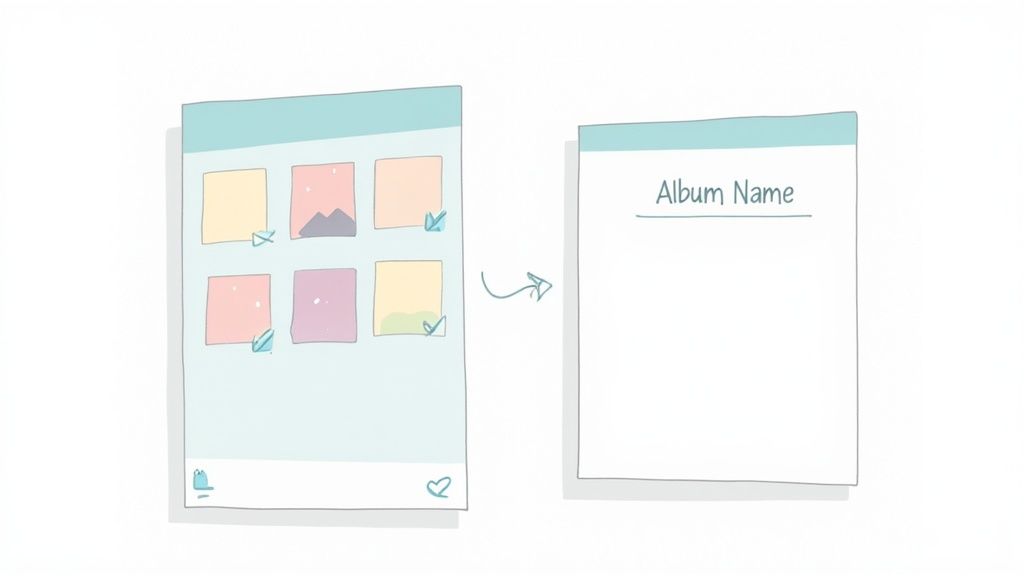
This is a core skill for managing the hundreds (or thousands) of photos we all take. Whether it's for "Summer Vacation 2024" or "Mom's 60th Birthday," a well-named album makes finding your favorite shots a total breeze.
Selecting Photos Like a Pro
First things first: you need to choose your pictures. You can tap each one individually, but trust me, there's a much faster way to create a photo album on your iPhone.
Tap Select in the top-right corner. Now, here's the trick: place your finger on a photo and just drag it across and down the screen. This slick swipe gesture lets you grab dozens of images in just a few seconds.
Once you have your photos highlighted, tap the Share icon (that's the little box with an arrow pointing up) and pick Add to Album. From there, you can create a New Album and give it a name you'll actually remember. Don't stress about getting it perfect—you can always add or remove photos later.
An organized digital library is the bedrock of good photo management. By grouping photos into distinct albums, you’re not just cleaning up your device; you're creating a structured foundation that makes future projects, like building a wedding gallery or printing a photobook, incredibly simple.
Leveraging Powerful Search Functions
But what if the photos you need are buried somewhere deep in your camera roll from two years ago? This is where Apple’s powerful search function becomes your best friend.
In the Photos app, tap the Search tab at the bottom right. You'd be surprised how specific you can get with your search queries.
Give these a shot to find images in a snap:
- By Location: Type in "New York City" to see every photo you've ever taken there.
- By Date: Search for "July 2024" to pull up all your memories from that month.
- By Content: Look for things like "beach," "dog," or even "cake" to find photos containing those objects.
This smart search feature slashes the time it takes to hunt down photos for a new album. Once you find the pictures you're looking for, just tap Select, choose your shots, and add them directly to a new or existing album.
For more expert advice, check out our complete guide on how to organize digital photos, which dives into strategies for handling huge collections. Mastering these basics will make every other photo-related task so much easier.
Once you’ve got the hang of creating albums for yourself, it's time to bring your friends and family into the fun. This is exactly what iCloud Shared Albums were made for. It takes the solo effort of creating a photo album on an iPhone and turns it into a collaborative project. Just think: one central, easy-to-access spot for all the photos from a family reunion or that big group vacation.

It’s surprisingly simple. You create an album, invite people using their Apple ID, and suddenly everyone can add their own photos, videos, and even comments. The best part? Shared Albums don't count against your personal iCloud storage, which is perfect for collecting a ton of high-resolution pictures without worrying about hitting a limit.
Getting Your Shared Album Started
Ready to kick things off? Pop open the Photos app, go to the Albums tab, and hit that little plus sign (+) in the top-left corner. From there, select "New Shared Album," give it a name you'll remember, and tap "Next." Now for the fun part—inviting people. You can add them by typing in their name, email, or the phone number they use for their Apple ID.
Once you tap "Create," your new Shared Album pops up, ready for action. Everyone you invited gets a notification to join. As soon as they accept, they can view, like, comment, and add their own photos and videos right from their Apple devices.
The real magic of a Shared Album is how seamless it is. A photo added by one person shows up instantly for everyone else. It creates this dynamic, living gallery that just keeps growing as more memories get added.
This is a brilliant solution for events where most of your guests are already in the Apple ecosystem. The whole process leans into the reality of modern photography: smartphones are responsible for a staggering 92.5% of all photos taken. By 2025, iPhones are expected to be the go-to device for 86% of users. This is a huge reason why the photo-sharing market, projected to hit $5.67 billion in 2025, often starts with a simple iPhone album shared between friends.
Managing Subscribers and Privacy
As the creator, you’re in the driver's seat. You can add or remove people whenever you want and even flip on a "Public Website" option. If you enable this, anyone with the link can see the photos, even if they don’t have an Apple device. It's a great feature for sharing more broadly, but just be careful about privacy.
Here are a few essential tips for managing your album:
- Control Contributions: By default, everyone you invite can add their own photos. If you want to keep things more curated, you can turn this permission off for specific people.
- Stay in the Loop: You'll get notifications whenever someone adds photos, likes a picture, or leaves a comment, so you can watch the album evolve in real-time.
- You're the Owner: You are the only one who can delete the entire album. Subscribers can only remove the photos they personally uploaded.
Shared Albums are a fantastic tool, but they have their own quirks. To see how they stack up against other methods, check out our deep dive into the world of shared photo albums. It’ll help you figure out the best way to collect photos for your specific event and crowd.
Collect Event Photos Instantly with a QR Code
Let's be real. While the Photos app and Shared Albums are great for your personal collection, they just don't cut it when you need to gather photos from a crowd. Nobody wants to spend the week after a great party chasing down guests, sifting through a hundred text messages, and trying to pull images from five different social media platforms. It’s a total headache.
There's a much smarter, modern way to create a photo album on your iPhone that includes pictures from everyone who was there.
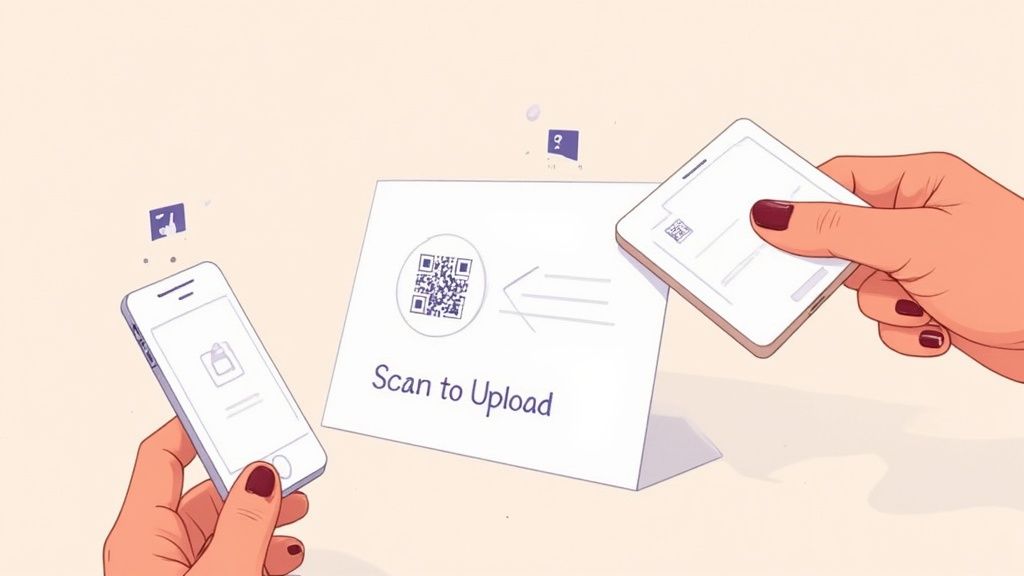
The secret is a simple, scannable QR code. Guests just point their phone's camera at it, and a direct upload link pops up in their browser. The best part? There's absolutely no app to download. This single detail removes the biggest barrier to getting people to share their photos and ensures everyone—iPhone or Android users alike—can easily contribute.
How QR Code Photo Collection Works
The magic of this method is in its simplicity and universal appeal. It makes photo collection a breeze for any gathering, funneling every candid shot into a single, private online gallery in real time. It's so seamless that it’s become the go-to for modern weddings, but its versatility extends far beyond that.
Think about using a QR gallery for:
- Birthdays: Finally capture every angle of that surprise party.
- Corporate Gatherings: Easily pool photos from team-building events, conferences, or holiday parties.
- Family Reunions: Create a complete visual history of your multi-generational get-together.
- Graduations: Collect photos from every proud family member and friend celebrating the big day.
This approach taps into a huge trend. The global photobook and album market was valued at $3.42 billion in 2024 and is expected to climb to $4.95 billion by 2032. A big slice of that growth comes from wedding albums, especially here in North America where couples love the storytelling power of landscape-format books.
Comparing Photo Collection Methods
It can be tough to visualize just how much easier a QR code system is compared to the old ways. This table breaks down the key differences.
| Feature | QR Code Upload (No App) | iCloud Shared Album | Social Media Hashtag |
|---|---|---|---|
| Guest Experience | Scan and upload—takes seconds | Requires an Apple ID, app usage, and an invitation | Requires a public social media account |
| Device Support | Works on any smartphone (iPhone & Android) | Apple devices only | Works on any smartphone |
| Photo Privacy | Gallery is private; you control who sees it | Private to invited members, but tied to personal iCloud | Photos are public and visible to anyone |
| ** Ease of Setup** | Create a gallery & QR code in 5 minutes | Set up album, invite each contact individually | Choose a unique hashtag, promote it heavily |
| Photo Quality | Full resolution | Often compressed by Apple to save space | Heavily compressed by the social platform |
As you can see, the QR code method offers the simplest experience for guests and the most control for you, which is a winning combination for any event.
Practical Ideas for Your Event
To get the most participation, make your QR code impossible to miss. Place it strategically where guests will naturally gather and look throughout the event.
A fantastic move is to display your event’s QR code at the venue entrance or on invitations for instant photo uploads. This tells guests how to share their photos from the moment they walk in, turning photo collection into a fun, interactive part of the celebration itself.
One small detail that makes a big difference is the quality of your printed QR code. Getting the size and material right is key, so it's worth taking a minute to understand the basics of making QR code stickers that actually work. This ensures a smooth, frustration-free experience for every single guest.
To learn more about setting up your own gallery, check out our complete guide to using https://www.wedpicsqr.com/blog/event-qr-codes.
Pro Tips for a Perfectly Curated iPhone Album
Making albums is a good start, but turning them into something special is where the real work begins. Your iPhone has some powerful built-in tools that can transform a jumbled collection of pictures into a polished, compelling story. This is how you level up your albums from cluttered galleries to perfectly curated memories.
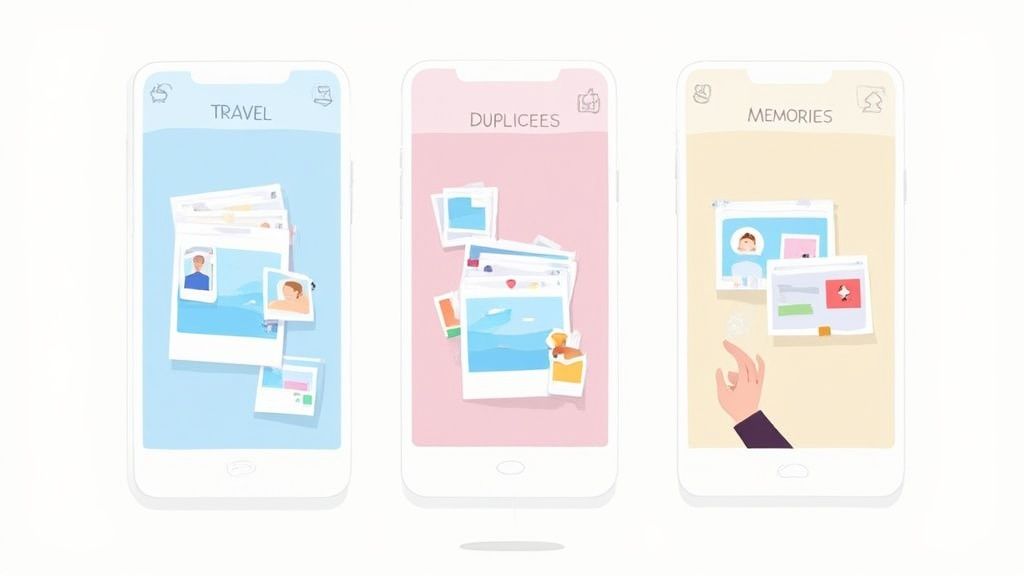
It all starts with a good old-fashioned declutter. Let's be honest, our photo libraries are magnets for burst shots, nearly identical selfies, and accidental screenshots. All that digital junk eats up storage and makes finding the photos you actually care about a huge pain. So, let’s tackle this problem first.
Clean Up with the Duplicates Feature
One of the best-kept secrets in the Photos app is the Duplicates feature. It’s a lifesaver. It automatically scans your entire library and groups together exact copies and visually similar images, making cleanup almost effortless.
To find it, just pop open the Photos app, tap the Albums tab, and scroll way down to the "Utilities" section. You’ll spot an album called "Duplicates." Tapping it shows you sets of similar shots and gives you a simple Merge button.
This keeps the single best-quality photo from each set and moves the rest to your Recently Deleted folder. Boom. Instant space saver.
I try to do this once a month to keep my library from getting out of control. A clean library makes it so much easier to create a photo album on your iPhone without having to wade through a sea of unnecessary pictures.
Organize Albums with Folders
As you get more organized and start creating more albums, the album list itself can become a new source of clutter. The solution? Folders. Grouping related albums into folders adds another much-needed layer of organization, especially for big categories like travel or family events.
For instance, say you have separate albums for "Paris 2023," "Tokyo 2024," and "Italian Road Trip." Instead of letting them float around in your main album list, you can create a single folder called "Travel" to tuck them all into.
Here’s the quick and easy way to do it:
- In the Albums tab, tap the plus sign (+) in the top-left corner.
- Select New Folder and give it a name, like "Family Events."
- Open that new folder, tap Edit, and then hit the plus sign (+) again to create new albums right inside it.
This simple structure makes finding what you're looking for so much faster.
Think of a folder system as a digital filing cabinet for your memories. It takes a chaotic list of albums and turns it into a logical, easy-to-browse library, saving you a ton of time and frustration.
Let AI Create Video Memories
Last but not least, don't sleep on the "For You" tab in your Photos app. This little corner of the app uses your iPhone's on-device intelligence to pull out your best photos and automatically create beautiful video slideshows called Memories.
These are short, shareable videos set to music, complete with titles and smooth transitions, all built from photos in your albums or from specific dates and locations. It does all the heavy lifting for you.
You can even jump in and edit these Memories—swap out the music, tweak the clip lengths, or add and remove specific photos. Once it's perfect, you can save the video to your library or share it directly with friends and family. It’s an amazing way to bring your static photo albums to life, no video editing skills required.
Frequently Asked Questions
When it comes to creating a photo album on an iPhone, you've got options. But which one is right for your event? Let's clear up some of the common questions people have about storage, who can participate, and the best way to keep thousands of photos organized.
Does Creating a Shared Album on My iPhone Use My iCloud Storage?
Nope, and this is probably the best part about using iCloud Shared Albums. Any photos or videos you pop into a Shared Album don't count against your personal iCloud storage plan. It’s a huge perk.
There's a cap of 5,000 photos and videos per album, but for sharing memories with a close-knit group of family and friends, it’s a fantastic, totally free option. As long as everyone is on an Apple device, it's a seamless way to create a collaborative album without worrying about storage space.
Can Android Users Add Photos to My QR Code Album?
Absolutely! This is precisely why a QR code system is so effective for big events. The magic is that the upload link opens right in a standard web browser, making it compatible with literally any smartphone.
Any guest, whether they're team iPhone or team Android, can just scan the code and start uploading. It means no one needs a specific device or has to download a special app. It completely removes the friction and guarantees that everyone can chip in.
Display your event’s QR code at the venue entrance or on invitations for instant photo uploads. A simple sign prompts guests to start sharing from the moment they walk in, and you won't have to chase anyone for photos later.
What Is the Best Way to Organize Photos for a Large Event Like a Wedding?
For a big day like a wedding, you’ll want a hybrid approach to make sure you don’t miss a single moment. I've found this strategy works just as well for big birthday bashes, corporate events, or family reunions.
First things first: set up a QR code system like WedPicsQR for your guests. It's the most straightforward way to gather all those amazing candid shots in real-time. Once the event is over, you can download the entire gallery in one go.
Then, open your iPhone's Photos app and create a main album called "Wedding Gallery." If you really want to stay organized, create a new folder first and then nest smaller, more specific albums inside it. Think "Getting Ready," "Ceremony," and "Reception." It keeps everything perfectly curated and easy to find later on.
Ready to collect every precious moment from your special day effortlessly? With WedPicsQR, you can create a private, shareable gallery in minutes. Guests scan a simple QR code to upload their photos instantly—no app required. Start your free wedding photo album today!
Capture Your Wedding Memories with WedPicsQR
Create a unique photo-sharing page for your wedding and let your guests contribute to your visual story.
Create Your First Photo Page