
The 10 Best Ways to Store Digital Photos for Weddings & Events in 2025
From the "I do" to the final dance, your wedding, birthday, or milestone event creates a lifetime of digital memories. But what happens after the last photo is snapped? Finding the best ways to store digital photos can feel overwhelming, especially when you need a solution that is both secure for the long term and simple enough to capture every guest's candid shot in the moment. A disorganized camera roll can make even the most robust storage system feel chaotic. Before you even choose a platform, the first step to truly preserving your digital memories is to get them in order. Learning about effective strategies for organizing your digital photos will set a strong foundation for any backup plan you implement.
This guide moves beyond just archiving and dives into the top 10 methods for both immediate collection and permanent preservation. We’ll explore everything from traditional local backups on hard drives to innovative, real-time collection platforms designed specifically for events. The focus is on ease of use, security, and practicality, with a primary focus on weddings but versatility for events like birthdays, corporate gatherings, reunions, and more.
A key highlight you'll discover is the power of instant, app-free uploads using QR codes. Imagine displaying your event’s QR code at the venue entrance or on invitations for instant photo uploads. Guests can add their photos to a central album instantly, without needing to download anything. This seamless consolidation ensures you capture every precious moment from your special day in one place. This article will equip you with actionable strategies to protect your most cherished photos for generations, ensuring no memory is ever lost or forgotten.
1. Cloud-Based Photo Galleries (Specialized Event Platforms)
When the goal is to consolidate photos from a specific gathering like a wedding, corporate event, or milestone birthday, a specialized event platform is one of the best ways to store digital photos collectively. Unlike general cloud storage, these services are purpose-built to aggregate images from dozens, or even hundreds, of guests into a single, cohesive gallery. They eliminate the hassle of chasing down photos via text messages, social media tags, or email chains.
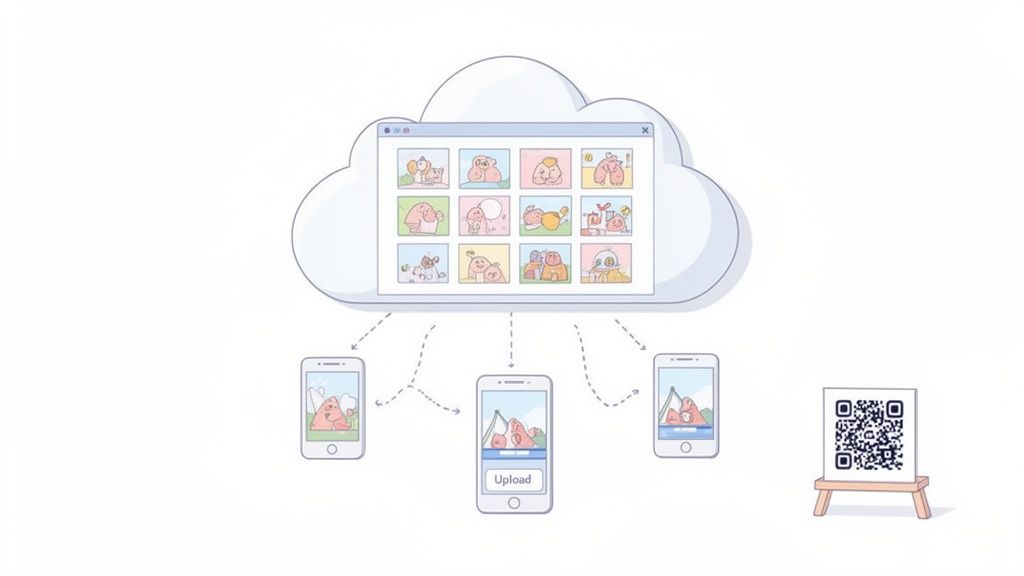
Platforms such as WedPicsQR, Eversnap, and Pixieset excel by simplifying the entire process. The core of this method is its incredible ease of use: hosts generate a unique QR code for their event. Guests simply scan it with their phone's camera, which opens a direct upload link in their browser. This approach requires no app downloads and no account creation, removing friction and encouraging immediate participation. Photos are uploaded in real-time to a centralized, private gallery that the host controls. While the primary focus is often on weddings, this method is versatile enough for reunions, corporate retreats, and family vacations.
How to Implement This Strategy
- Promote the QR Code: Display your event’s QR code prominently. Place it at the venue entrance, on table cards, cocktail napkins, or even on invitations for instant photo uploads.
- Customize Your Gallery: Before the event, personalize the gallery with event details, such as the couple’s names, the date, and a welcome message.
- Encourage Early Uploads: Ask a few key guests or the bridal party to upload the first few photos to get the ball rolling.
- Send Follow-Up Reminders: After the event, send a follow-up email or message with a direct link to the gallery, encouraging guests to upload any remaining photos within 48-72 hours.
- Download Your Collection: Once the collection period ends, download all the high-resolution images to create a permanent, local backup.
For those planning an event, these cloud galleries offer a powerful way to capture every candid moment. For a deeper dive into this approach, you can learn more about specialized photo storage ideas for events on WedPicsQR.com.
2. Google Photos
As a universally recognized platform, Google Photos stands out as one of the best ways to store digital photos for personal use and smaller-scale sharing. It functions as a smart cloud-based service that automatically backs up images from your phone, organizes them by date, location, and even recognizes faces and objects. This powerful indexing allows for intuitive searching, making it simple to find specific memories without manual tagging.

The primary feature for collaborative events like birthday parties or family reunions is its "Shared Albums" functionality. An organizer can create a dedicated album and share a unique link with guests, allowing them to view and contribute their own photos. This approach is highly accessible since many users already have a Google account. While it requires guests to have an account and navigate the app or website, it works well for tech-savvy groups who want to build a collective digital scrapbook. The service offers 15GB of free storage shared across a user's Google account, with paid plans available for more space.
How to Implement This Strategy
- Create a Shared Album: Before your event, go into Google Photos and create a new shared album, giving it a clear title like "Smith Family Reunion 2024."
- Adjust Sharing Settings: In the album options, turn on "Collaborate" and "Link sharing." Ensure permissions are set to allow anyone with the link to add photos.
- Distribute the Link: Share the link with guests via email, text message, or a private social media group. For events, you could create a simple QR code that directs guests to this link.
- Encourage Contributions: Ask a few people to add photos early on to encourage others. Send a reminder after the event to prompt guests to upload any final shots.
- Download the Full Collection: Once everyone has contributed, you can download the entire album as a .zip file to create a secure, local backup of all the memories.
For those considering various cloud options, Google Photos is a strong contender. You can explore more about its capabilities in this overview of the best free cloud storage for photos.
3. Amazon Photos & Prime Photos
For individuals and families already embedded in the Amazon ecosystem, Amazon Photos offers one of the best ways to store digital photos, especially for those with a Prime membership. This cloud-based service provides unlimited, full-resolution photo storage as a key perk for Prime members, making it an incredibly cost-effective solution for safeguarding vast collections. It functions as a secure digital vault that automatically backs up images from your phone, tablet, and computer, ensuring your memories are protected without manual effort.
Beyond simple storage, Amazon Photos includes powerful AI-driven features that automatically organize your library. It can recognize people, places, and things, allowing you to search for "beach," "birthday," or a specific family member and instantly find relevant pictures. A standout feature is the Family Vault, which allows up to six family members to share their unlimited photo storage and contribute to a single, collective archive. This is perfect for consolidating photos from family vacations, holiday gatherings, and milestone celebrations like anniversaries or reunions.
How to Implement This Strategy
- Activate Automatic Backups: Install the Amazon Photos app on all family members' smartphones and desktop computers. Enable the auto-save feature to ensure every new photo is backed up automatically to the cloud.
- Set Up the Family Vault: As the Prime account holder, invite up to five family members to your Family Vault. This grants them their own private storage plus access to the shared vault where everyone can add photos.
- Create Event-Specific Albums: For events like a birthday party or a family reunion, create a dedicated album within the Family Vault. Instruct family members to add their photos from the event to this specific album for easy organization and viewing.
- Use AI Search to Curate Collections: After an event, use the powerful search function to quickly find all photos of specific people or moments. For example, search for "Grandma" and "cake" to gather all the birthday celebration highlights.
- Display on Echo Show or Fire TV: Connect your Amazon Photos account to your Alexa-enabled devices like an Echo Show or Fire TV to create a dynamic digital photo frame that cycles through your favorite albums or recent memories.
This approach is especially powerful for families who want a centralized, "set it and forget it" backup solution that integrates seamlessly with devices they already own. You can learn more about its features on the official Amazon Photos website.
4. Dropbox
Dropbox is a household name in cloud storage, renowned for its file synchronization and powerful sharing capabilities. While not a specialized photo platform, it serves as one of the best ways to store digital photos collaboratively, especially for tech-savvy groups and professional workflows. Its core strength lies in creating shared folders where multiple users can upload, view, and organize files in a familiar directory structure, making it a reliable choice for consolidating images from various sources.
This method is particularly effective for scenarios requiring high levels of control and organization, such as a corporate event where different teams need to upload assets to specific subfolders. Professional photographers also frequently use Dropbox to deliver final galleries to clients. For a large family reunion or a multi-day conference, a shared Dropbox folder acts as a central repository that can be accessed from any device, ensuring all contributions are gathered in one place. Its powerful permissions allow hosts to control who can add, edit, or only view the contents.
How to Implement This Strategy
- Create a Central Event Folder: Start by creating a main folder for your event (e.g., "Johnson Family Reunion 2024"). Inside, create subfolders for different categories like "Day 1 Activities," "Formal Dinner," or by photographer name.
- Set ‘Can Edit’ Permissions: Generate a shareable link to the main folder and set the permissions to "Can edit." This allows anyone with the link to upload their photos without needing to be individually invited.
- Distribute the Link: Share the upload link via email, event chat groups, or by creating a QR code to display on-site. This makes it easy for guests to access the folder directly from their phones.
- Establish a Naming Convention: To maintain order, provide a simple naming convention guide. For example, "YourName_EventName_001.jpg." This helps immensely when sorting through hundreds of files later.
- Monitor and Organize: Periodically check the folder during and after the event to organize new uploads into their appropriate subfolders. This keeps the collection tidy and easy to navigate.
While it requires users to have a Dropbox account (or create one for larger uploads), its robust infrastructure and cross-platform syncing make it an excellent and versatile solution for organized photo collection. For more information, visit Dropbox.com.
5. OneDrive (Microsoft Cloud Storage)
For individuals and organizations deeply integrated into the Microsoft ecosystem, OneDrive stands out as one of the best ways to store digital photos. As Microsoft's native cloud storage solution, it offers seamless file synchronization across Windows devices, web, and mobile apps. It's particularly powerful for corporate events or family gatherings where many participants already have a Microsoft 365 subscription, providing a familiar interface and substantial storage space.
OneDrive moves beyond simple file hosting by offering robust features for creating shared albums and collaborative folders. Unlike specialized event platforms, its strength lies in its deep integration with other Microsoft tools like Office and Teams, making it ideal for professional settings where event photos are part of a larger project documentation process. For families and individuals using Windows, its automatic camera roll backup feature ensures that mobile photos are effortlessly saved and organized.
How to Implement This Strategy
- Create a Dedicated Shared Folder: Before the event, create a new folder in your OneDrive specifically for the event photos. Name it clearly, like "Corporate Retreat 2024" or "Smith Family Reunion."
- Set Specific Sharing Permissions: Invite contributors by sharing a link to the folder. You can control permissions, allowing some users to only view photos while granting others (like key team members or family) the ability to upload and edit.
- Leverage Microsoft 365 Benefits: If you or your organization has a Microsoft 365 plan, take advantage of the expanded storage (often 1TB or more per user) to collect high-resolution images without worrying about space constraints.
- Organize with a Clear Structure: Within the main event folder, create sub-folders for different parts of the event (e.g., "Keynote Speeches," "Team Building Activities," "Awards Dinner") to keep the collection organized as photos come in.
- Download for Permanent Backup: Once all photos have been collected, download the entire folder to a local hard drive or NAS to ensure you have a permanent, offline backup of your memories.
This approach is highly effective for corporate teams documenting an event or families already using the Microsoft ecosystem. For more information on its features, visit the official Microsoft OneDrive page.
6. iCloud Photos (Apple Ecosystem)
For individuals and families deeply integrated into the Apple ecosystem, iCloud Photos offers one of the most seamless and automated ways to store digital photos. This native solution is built directly into every iPhone, iPad, and Mac, creating a cohesive and effortless photo management experience. It automatically syncs every picture and video you take across all your signed-in devices, ensuring your entire library is always up-to-date and accessible from anywhere.
Unlike third-party apps, iCloud Photos works silently in the background, making it an ideal set-and-forget backup strategy for everyday life. Its power for events lies in its collaborative features, such as Shared Albums and iCloud Family Sharing. A family can create a dedicated shared album for a reunion or vacation, allowing all Apple-using members to contribute their photos and videos to a single, centralized collection. This approach eliminates the need to manually send files, as contributions from multiple iPhones appear almost instantly for everyone invited.
How to Implement This Strategy
- Create a Shared Album: Before an event, create a new Shared Album in the Photos app and invite family and friends via their Apple ID. You can even create a public website for the album, allowing non-Apple users to view the photos.
- Enable iCloud Family Sharing: For ongoing family photo collection, set up Family Sharing. This creates an automatic "Family" album where photos can be easily shared among members.
- Optimize Storage: Use the "Optimize iPhone Storage" setting to keep smaller, space-saving versions of photos on your device while the full-resolution originals are safely stored in iCloud.
- Encourage Real-Time Contributions: During the event, remind guests with iPhones to add their best shots to the Shared Album. For nearby users, AirDrop is an excellent way to quickly transfer high-quality images.
- Curate with "Memories": After the event, use the "Memories" feature within the Photos app, which automatically curates your photos and videos into a beautiful, shareable movie complete with music and transitions.
While exceptionally convenient for Apple users, this method can be less inclusive for guests using Android or other devices. For more information on setting up and maximizing this feature, visit Apple's official guide on how to use iCloud Photos.
7. External Hard Drives & NAS (Network-Attached Storage)
For those who prioritize complete control and data ownership, physical devices offer one of the most reliable and best ways to store digital photos. External hard drives and Network-Attached Storage (NAS) systems provide a local, offline backup solution that is independent of any cloud service or internet connection. This method is ideal for creating a permanent, private archive of invaluable memories, such as professional wedding photos or a lifetime of family pictures, without recurring subscription fees.
External hard drives from brands like Western Digital or Seagate are simple plug-and-play devices that offer terabytes of storage at a one-time cost. A NAS system, from manufacturers like Synology or QNAP, is a more advanced solution. It's essentially a mini-server for your home network, allowing multiple users to store, access, and back up files from any device. This makes it perfect for photographers managing large client galleries or families consolidating photos from multiple phones and computers into one central, secure location.
How to Implement This Strategy
- Follow the 3-2-1 Backup Rule: Maintain three copies of your photos on at least two different types of media, with one copy stored offsite. For example, keep one copy on your computer, a second on an external hard drive, and a third in the cloud or at a relative's house.
- Enable Redundancy on a NAS: Configure your NAS with RAID 1 (mirroring) or a similar setup. This automatically creates an identical copy of your data on a second drive, protecting your photos from a single drive failure.
- Schedule Automatic Backups: Use software like Acronis or the native tools on your operating system to schedule weekly or daily backups from your computer to your external drive or NAS.
- Label and Store Securely: Clearly label each drive with its contents (e.g., "Wedding Photos 2024," "Family Archive 2010-2020") and store it in a cool, dry, and secure location away from your primary computer.
- Plan for Device End-of-Life: When a drive is retired, it is crucial to follow secure disposal practices for old hard drives to ensure your private data is permanently erased.
This local storage strategy is a foundational component of a comprehensive photo preservation plan. For more information on keeping your growing collection tidy, explore these tips on how to organize digital photos.
8. Hybrid Cloud + Local Storage Strategy
For those who want the best of both worlds, a hybrid approach combining cloud-based platforms with local storage is one of the best ways to store digital photos. This strategy leverages the convenience of real-time cloud access for events while ensuring the long-term security and data ownership of a physical backup. It effectively mitigates the risks associated with having all your precious memories in a single location, whether online or offline.
This method excels in an event context, such as a wedding or corporate retreat. For example, a host can use a service like WedPicsQR to effortlessly collect guest photos in real-time via a simple QR code. During and immediately after the event, everyone has easy access to the shared cloud gallery. Once the event concludes, the host downloads the entire collection and archives it on local storage, like an external hard drive or a NAS system. This creates a permanent, offline copy that is immune to server outages, subscription changes, or internet connectivity issues.
How to Implement This Strategy
- Prioritize Live Collection: During your event, focus on the cloud component. Display your event's QR code on welcome signs, table cards, and even on a projected slideshow to encourage instant photo uploads without any app downloads.
- Schedule an Immediate Download: As soon as your event ends, or within 48-72 hours, download the complete, high-resolution photo gallery from your cloud service to your primary computer.
- Automate Local Backups: Set up software to automatically sync your computer's photo folder to an external hard drive or NAS. This ensures the downloaded collection is immediately backed up.
- Follow the 3-2-1 Rule: For ultimate security, create at least three copies of your photos on two different types of media, with one copy stored off-site (e.g., at a family member's house or in a safe deposit box).
- Encrypt Sensitive Content: For private photos, use encrypted external drives to protect your data from unauthorized access if the drive is lost or stolen.
- Set an Annual Review: Mark your calendar to check the integrity of your local backups once a year to ensure the drives are still functional and the data is not corrupted.
9. USB Flash Drives & Portable SSDs
For a tangible, offline, and highly portable storage solution, USB flash drives and portable Solid-State Drives (SSDs) remain one of the best ways to store digital photos. These compact devices offer a straightforward method for creating physical backups, transferring large photo libraries quickly, and sharing collections without relying on an internet connection. They are a one-time purchase, free from the recurring subscription fees associated with cloud storage, making them a cost-effective choice for long-term archiving or distribution.

The primary appeal of this method lies in its simplicity and speed. Modern portable SSDs from brands like Samsung or Crucial offer blazing-fast transfer speeds, making them ideal for professional photographers who need to back up thousands of high-resolution images while on location. Similarly, a wedding photographer might deliver the final, curated gallery to a client on a custom-branded USB drive from SanDisk or Kingston. This approach provides a professional, physical keepsake and ensures the client has a high-quality copy they can easily access and share with family.
How to Implement This Strategy
- Choose the Right Device: Opt for high-speed USB 3.1 or Thunderbolt-enabled SSDs for fast data transfers, especially with large RAW files or 4K video.
- Create Redundant Copies: Never rely on a single drive. Purchase multiple USBs to create several copies of your most important photos and store them in different physical locations for disaster recovery.
- Label and Organize: Clearly label each drive with the event name, date, and a summary of its contents to avoid confusion later.
- Prioritize Durability and Security: For fieldwork or important events, invest in ruggedized or waterproof models. If photos are sensitive, use hardware-encrypted USB drives to protect your data from unauthorized access.
- Combine with Other Methods: Use portable drives as one component of a larger backup strategy. A common workflow is to back up photos to a portable SSD on-site, then upload them to a cloud service and a NAS upon returning home for a comprehensive 3-2-1 backup.
10. Professional Photo Archival Services
For digital photo collections that are irreplaceable, historically significant, or hold immense sentimental value, professional archival services offer one of the best ways to store digital photos for long-term preservation. Unlike consumer-grade storage solutions, these specialized services apply museum-quality standards to ensure your images survive for generations. They go beyond simple backup, offering expert organization, detailed metadata tagging, and media conversion to safeguard against file degradation and format obsolescence.
Services like Legacy Box and Archival Methods provide a white-glove approach to digital preservation. This process often involves a consultation to understand the collection's scope, followed by professional curation and digitization of any physical media. The core value lies in their rigorous, climate-controlled storage and systematic data migration plans. This is the ultimate set-it-and-forget-it solution for high-value assets, such as a family's entire photographic history, a professional photographer's life's work, or an organization's historical records.
How to Implement This Strategy
- Assess Your Collection: Identify which photos are truly irreplaceable. This strategy is best suited for core heritage collections, not everyday snapshots.
- Vet Potential Services: Research archivists and preservation companies thoroughly. Request details on their disaster recovery plans, insurance policies, and data migration protocols.
- Document Provenance: Before handing over your files, gather as much context as possible. Document names, dates, locations, and the stories behind the photos to be included in the metadata.
- Plan for Accessibility: While the master files will be in deep storage, ensure the service provides an accessible "working copy" you can view through a secure online gallery.
- Budget Accordingly: Professional archival is an investment. For premium life events like weddings or anniversaries, consider including this service in your budget to preserve the official photographer's collection for future generations.
This method is ideal for those who see their photo collection as a legacy asset. It provides unparalleled peace of mind that your most important memories are protected by experts against physical and digital decay.
Top 10 Photo Storage Methods Compared
| Item | Implementation complexity | Resource requirements | Expected outcomes | Ideal use cases | Key advantages |
|---|---|---|---|---|---|
| Cloud-Based Photo Galleries (Specialized Event Platforms) | Low — web-based setup, minimal tech skills | Internet access; optional subscription for premium features | Real-time consolidated guest uploads and organized gallery | Weddings, birthdays, corporate gatherings, reunions, and more | Seamless consolidation via QR code, no app needed, high ease of use |
| Google Photos | Low — create shared albums/links | Internet; Google account recommended; free 15GB or paid storage | Automated backups, AI-powered search and shared albums | Budget-conscious organizers, Android users, small–medium events | Powerful search/AI, cross-device access, easy link sharing |
| Amazon Photos & Prime Photos | Low — enable backups and Family Library | Internet; Prime membership for unlimited original quality | Original-quality backups with family sharing and device integration | Prime households, multi-family events | Unlimited full-quality storage for Prime members; Alexa/Fire integration |
| Dropbox | Low–Moderate — set up shared folders and permissions | Internet; paid plan for larger storage | Structured folder-based collection with version history and permissions | Corporate events, professional photographers, teams needing control | Granular permissions, reliable sync, file recovery/versioning |
| OneDrive (Microsoft Cloud Storage) | Low — integrated with Microsoft 365 | Internet; Microsoft account; 365 subscription for large storage | Office-integrated sharing, backups, and collaboration | Microsoft-centric businesses and corporate events | Seamless Office integration; strong collaboration and value for 365 users |
| iCloud Photos (Apple Ecosystem) | Low for Apple users; requires Apple IDs | Apple devices; iCloud storage plan (paid beyond 5GB) | Automatic sync across Apple devices with encrypted backups | Apple-dominant families and events with iPhone attendees | End-to-end encryption, native Photos integration, high-quality originals |
| External Hard Drives & NAS | Moderate–High — hardware setup and maintenance (RAID, network) | One-time hardware purchase; physical space; technical setup | High-capacity local archival, no compression, full data ownership | Professional photographers, archivists, long-term preservation | No recurring fees, large capacity, local control and redundancy options |
| Hybrid Cloud + Local Storage Strategy | High — manage cloud syncs and local backups | Cloud subscriptions + local drives/NAS + time/technical skills | Immediate online access plus redundant long-term backups | High-value events, pro photographers, preservation-focused organizers | Combines convenience of cloud with durable local archival and redundancy |
| USB Flash Drives & Portable SSDs | Low — plug-and-play manual transfers | Purchase of flash drives or SSDs; manual handling | Portable physical backups and fast transfers for distribution | Client delivery, field backups, event distribution of copies | Highly portable, fast transfer speeds, no subscriptions |
| Professional Photo Archival Services | High — coordination, digitization, and shipping | Significant cost; expert services; possible physical shipment | Museum-grade preservation, metadata, restoration, and disaster protection | Irreplaceable collections, estates, museums, institutional archives | Expert archival standards, long-term preservation, professional restoration and redundancy |
Choosing Your Perfect Photo Storage Strategy
Navigating the landscape of digital photo storage can feel overwhelming, but as we've explored, the best ways to store digital photos are not about finding a single, magical solution. Instead, it's about crafting a personalized, multi-layered strategy that protects your most cherished memories from every angle. From the instant gratification of cloud services to the tangible security of local drives, each method serves a unique purpose in the lifecycle of your digital images. The ultimate goal is to create a system that is both secure for the long term and effortless in the moment of capture, especially during once-in-a-lifetime events like weddings, anniversaries, or milestone corporate gatherings.
The most powerful takeaway from this guide is the principle of redundancy. Relying on a single storage method, whether it's a solitary external hard drive or a lone cloud account, introduces a single point of failure. A corrupted drive, a forgotten password, or a change in service terms could put decades of memories at risk. The gold standard, the 3-2-1 backup rule (three copies of your data, on two different media types, with one copy off-site), is more than just a technical recommendation; it's a philosophy for digital preservation. Your perfect system will likely be a hybrid, combining the immediate accessibility of the cloud with the sovereign control of a local backup.
From Moment Capture to Lifetime Archive
Think of your photo storage strategy in two distinct phases: collection and preservation.
-
Phase 1: Effortless Collection. For events, the initial challenge is gathering photos from dozens, or even hundreds, of people. This is where specialized, event-focused platforms are invaluable. They eliminate the friction of asking guests to download apps or send photos via text, which often results in lost images and fragmented collections. An app-free, QR code-based system like WedPicsQR transforms every guest into a contributor, ensuring candid moments are captured and instantly consolidated. Displaying your event’s QR code at the venue entrance or on invitations for instant photo uploads makes participation seamless and immediate.
-
Phase 2: Robust Preservation. Once the event is over and all the photos are gathered, the focus shifts to long-term safety. This is the time to download the complete gallery from your event platform and enact your 3-2-1 strategy. You might upload the entire collection to a permanent cloud home like Google Photos or Amazon Photos for easy sharing, while simultaneously backing it up to a network-attached storage (NAS) device at home and an external hard drive stored securely off-site.
This two-phase approach ensures you get the best of both worlds. You get the fun, interactive, and comprehensive collection during the event, followed by the peace of mind that comes with a robust, multi-location backup for the future. Mastering this workflow is the key to ensuring that the joy of the day isn't followed by the anxiety of potential data loss. By having a plan before your event begins, you empower yourself to be fully present, knowing that the memories being made are already on their way to being safely preserved for a lifetime. Your digital legacy is too important to leave to chance; a thoughtful, proactive strategy is the best investment you can make in your memories.
Ready to master the art of effortless photo collection at your next event? WedPicsQR provides the simplest way to gather every guest photo in one place using a single, scannable QR code, no app required. Create your free event gallery and see how easy it is to capture every moment at WedPicsQR.
Capture Your Wedding Memories with WedPicsQR
Create a unique photo-sharing page for your wedding and let your guests contribute to your visual story.
Create Your First Photo Page