
How to Scan a QR Code From a Picture on Any Device
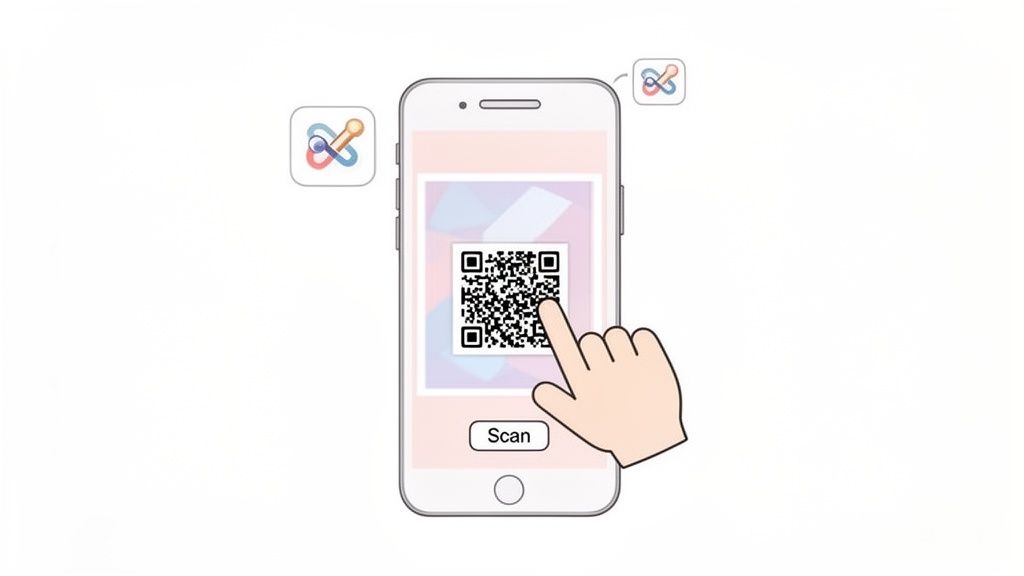
Ever found yourself with a picture of a QR code on your phone, wondering how on earth you're supposed to scan it? It's a common situation, and thankfully, the solution is built right into your smartphone.
Forget downloading a special app or using a second device. Modern iPhones and Androids have a slick feature that automatically detects QR codes in your photos. Just open the picture in your gallery, and your phone will do the rest. It's incredibly easy.
Why Scan a QR Code From a Picture?
Being able to scan a QR code from a saved image is a game-changer for events. It's the simple tech that powers services like WedPicsQR, making photo sharing completely seamless. This approach ensures you can effortlessly consolidate every guest photo into one place.
Primarily designed for weddings, this method is incredibly versatile. It's perfect for birthdays, corporate gatherings, family reunions, and more. The ease of use is universal: guests can make instant photo uploads without needing to download a special app. For example, you can display your event’s QR code at the venue entrance or on invitations for instant photo uploads. A guest arrives, snaps a picture of the QR code sign, and later, from the comfort of their table, they can just open that photo, tap the code, and start uploading pictures. No fuss, no friction.
This isn't just for weddings, either. The applications are everywhere:
- Corporate Events: An attendee photographs a presentation slide. Later, they can scan the QR code from that photo to get documents or fill out a feedback form.
- Birthday Parties: Someone screenshots a digital invitation. They can scan the QR code from that screenshot later to seamlessly join the shared party album.
- Family Reunions: Pop a QR code on the welcome sign. Family members can take a picture of it and upload their photos whenever they have a free moment, consolidating memories easily.
This kind of intuitive tech is becoming more and more common. Projections show that by 2025, over 100 million smartphone users in the US will be scanning QR codes regularly. That’s a huge leap from 83.4 million back in 2022, and it’s all driven by how incredibly easy phone makers have made it.
The technology that lets your phone read a QR code in an image is the same powerful stuff that allows it to recognize text. If you're curious about the tech behind it all, you can learn how phones convert images to text using Optical Character Recognition (OCR).
And once you've used these tricks to consolidate all those amazing photos from your event, you'll want to get them organized. A great next step is learning about creating photo albums on your iPhone to keep your memories tidy.
How to Scan a QR Code From a Picture on Your iPhone
If you're an iPhone user, you've got a seriously handy feature tucked away in your Photos app that you might not even know about. You can scan a QR code directly from a picture—no extra apps or complicated steps needed. It’s built right in, making it incredibly easy to use.
This is a lifesaver at social events, especially weddings. Picture this: you're at a wedding and see the QR code for the shared photo gallery on a sign. Instead of getting up, just snap a quick picture of it. You can scan it later for instant photo uploads whenever you're ready. It's a seamless way to consolidate every captured moment.
Using Live Text in Your Photos App
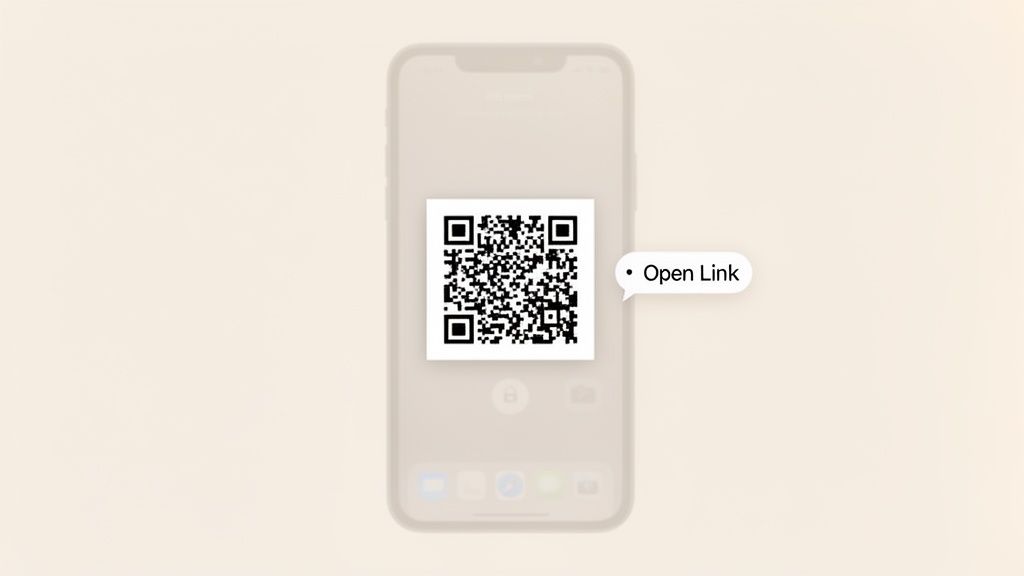
The magic behind this trick is a feature from Apple called Live Text. It's designed to automatically spot text, phone numbers, and, you guessed it, QR codes inside any of your saved photos or screenshots.
Here’s how ridiculously simple it is to use:
- First, open your Photos app and pull up the picture that has the QR code.
- Tap the photo so it fills the screen.
- Almost instantly, Live Text will find the QR code and highlight it. You’ll see a little link with a yellow border pop up right over the code.
- Just tap that link, and Safari will whisk you away to the destination.
This is what makes collecting photos at events like weddings, birthdays, or corporate gatherings so seamless. There’s no app requirement for your guests; they just use the tools already on their phones to start uploading memories. The ease of use is unparalleled.
For anyone hosting an event, this is a total game-changer. Just display your event’s QR code on invitations or a sign at the entrance. Guests can take a picture of it and add their photos to the shared gallery at their leisure, meaning you won’t miss a single moment.
This kind of intuitive design is exactly why QR codes have become the go-to method for gathering guest photos. The whole process feels natural, so everyone from your tech-savvy cousin to your grandma can join in and share their view of the celebration.
How to Scan a QR Code From a Picture on Android
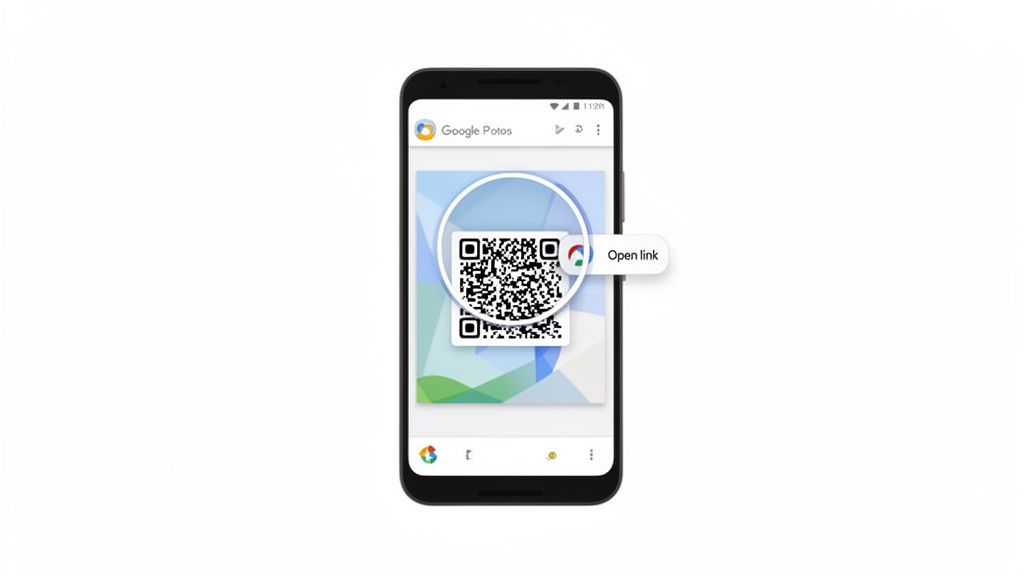
If you're an Android user, you're in luck. You already have a powerful, built-in tool that makes scanning a QR code from a picture incredibly simple: Google Lens.
Most of the time, this feature is baked right into your Google Photos app, so you don’t need to download anything extra. It’s seamless and exceptionally easy to use.
Let's say a friend texts you a flyer for a wedding or birthday party with a QR code on it. Instead of grabbing a second phone to scan the screen (we've all been there), you can just save the image and let your phone do the rest. It’s a no-fuss way to get event details or jump into a shared photo gallery for instant photo uploads.
Use Google Lens in Your Photos
For most Android users, scanning a QR code from a saved picture is just a couple of taps away. The process is so intuitive, anyone can do it.
Here’s how to get it done:
- First, open your Google Photos app and navigate to the image with the QR code.
- Tap the picture so it fills the screen.
- Look at the bottom of the screen and tap the "Lens" icon. Google Lens will instantly scan the image and lock onto the QR code.
- A link will pop right up. Just tap it, and you're on your way.
This kind of instant, easy functionality is a huge reason QR codes have exploded in popularity. The convenience of scanning from saved images has driven massive adoption, with projections showing there will be 102.6 million QR code users in the US alone by 2026. If you want to dive deeper, check out these shocking QR code statistics.
Other Android Scanning Options
While Google Lens is the go-to for most, some phone manufacturers have their own built-in tools. Samsung users, for instance, can use Bixby Vision, which works almost exactly like Google Lens. Just open the picture in your Samsung Gallery app, tap the Bixby Vision icon, and it will scan any QR code it finds.
This built-in functionality is a lifesaver for events. You can display your event’s QR code on invitations or at the venue entrance. Guests can just snap a picture of it and scan it later to upload their photos. It ensures every moment gets captured and consolidated into one album without anyone needing to download an app.
Troubleshooting Common Scanning Issues
Even the simplest tech has its off days. We’ve all been there: trying to scan a QR code from a picture that just won't cooperate. It’s a common hiccup, but thankfully, the fixes are usually pretty straightforward.
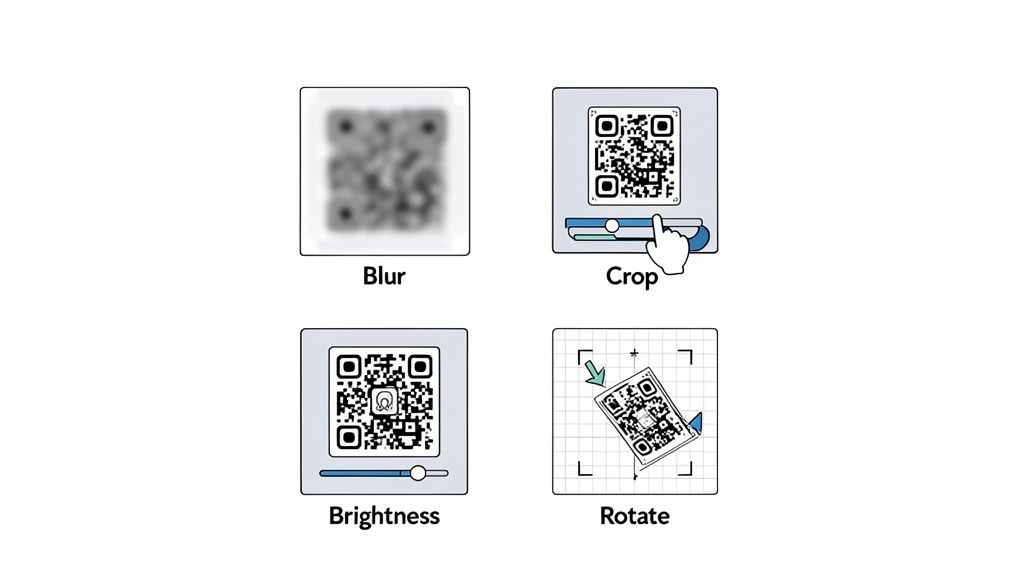
Nine times out of ten, when a scan fails, the problem isn't your phone—it's the quality of the image itself. Your phone's scanner is looking for a crisp, clear pattern. If the photo of the QR code is blurry, too dark, or taken from a weird angle, the scanner gets confused and can't read the data.
Quick Fixes for Unscannable QR Code Photos
Before you throw in the towel, try these simple tweaks using your phone’s built-in photo editor. You don't need fancy software to give your scan another shot.
-
Crop It Close: Is the QR code just a tiny part of a much larger picture? Zoom in and crop the image so the code fills the entire frame. This gets rid of distracting background junk and helps your phone’s scanner lock onto the pattern.
-
Boost the Lighting and Contrast: A photo that's too dark or completely washed out is a scanner's worst nightmare. Pop open your photo editor and play with the brightness and contrast sliders. A quick adjustment can make the black squares pop against the white background, which is exactly what the scanner needs to see.
-
Straighten Things Out: Was the picture taken from a sharp angle? This can warp the QR code’s square shape and make it unreadable. Look for a "straighten" or "perspective" tool in your editor to flatten the image out, making the code look as square-on as possible.
These small edits often make all the difference. Taking a moment to clean up the image is usually all it takes to get you into that wedding gallery or event page without any more tech headaches.
Taking Your QR Code Scan to the Next Level at Events
So, you’ve nailed how to scan a QR code from a picture. Cool trick, right? But this little skill is more than just a tech novelty—it’s your secret weapon for creating a shared photo album at any event. The whole point is to make it dead simple for guests to connect and contribute, allowing for seamless consolidation of photos.
Picture this: A guest gets your digital wedding invitation and saves it to their phone. Later, they just open that picture, scan the QR code, and their browser instantly pulls up a personalized photo gallery. A couple of taps, and the awesome photos they just took are uploaded for everyone to see.
The best part? No app download required. Guests can jump right in and add their photos with instant uploads, which means you’re not begging people to install yet another piece of software on their phones.
That simple, frictionless process is the key to capturing all those candid, behind-the-scenes moments that make an event truly memorable. This ease of use makes photo sharing an effortless part of the celebration for everyone.
Getting the Most Photos at Any Gathering
While this is a game-changer for weddings, the concept works for just about any get-together. The versatility extends to birthdays, corporate events, family reunions—you name it. The goal is always the same: make it ridiculously easy for people to share their pictures.
Here are a few practical ways to get everyone involved:
- Pop it on the Invites: Stick the QR code right on your digital or printed invitations. That way, your guests are ready to go before they even walk in the door.
- Display It Everywhere: Put signs with your event’s QR code at the entrance, on every table, or even by the bar. Constant visibility is key.
- Add It to the Program: Slip the QR code onto the event schedule or program as a handy reminder for guests to upload their favorite shots.
By weaving the QR code into the fabric of your event, you’re constantly encouraging people to participate. If you want to dive deeper, you can find more great ideas in these tips on event QR codes.
Once you see how simple it is to use them, you’ll probably want to generate QR codes for your own events to handle everything from guest check-in to sharing info.
Got Questions About Scanning QR Codes?
When you’re trying to round up every last photo from an event, a few common questions always seem to come up. Let's clear the air so you and your guests can focus on making memories, not wrestling with tech.
The best part? You almost certainly do not need a special app to scan a QR code from a picture. Modern iPhones and Androids have this feature built right into the camera and photo apps, which makes life a whole lot easier for everyone. The ease of use is a major benefit.
Why Won't My QR Code Photo Scan?
Nine times out of ten, if a scan is failing, it's the picture quality. A QR code in a photo that’s blurry, taken at a weird angle, or lost in shadows is tough for your phone's camera to figure out. The scanner needs a clear, high-contrast image to do its job.
Fortunately, a little photo editing magic can usually save the day. Try these quick fixes:
- Crop it: Cut out all the background noise and zero in on just the QR code.
- Boost the contrast: Make those black squares pop against the white background.
- Straighten it out: Use the perspective or transform tool to fix any distortion from an angled shot.
These simple tweaks can turn an unscannable code into a working one in just a few seconds, getting you straight into that wedding gallery without any more hassle.
Can I Scan Any QR Code From a Picture?
Yep, this trick works for all standard QR codes, which is what makes it so useful. It doesn't matter if the code points to a website, a restaurant's PDF menu, or a private gallery for your wedding. Your phone’s built-in scanner can handle it. The tech is designed to simply decode the pattern it sees.
If you're curious about the nuts and bolts of it, our guide on what a QR code is and how it works breaks it all down.
This universal capability is perfect for getting all your photos in one place. You can display your event's QR code on signs, invitations, or table cards for instant photo uploads, making sure every last memory gets captured and seamlessly consolidated.
Ready to effortlessly collect every photo from your big day? Create a free, beautiful, and app-free photo gallery with WedPicsQR and let your guests do the rest. Start your free gallery at WedPicsQR today!